2026 Higher Education Bargaining Backgrounds
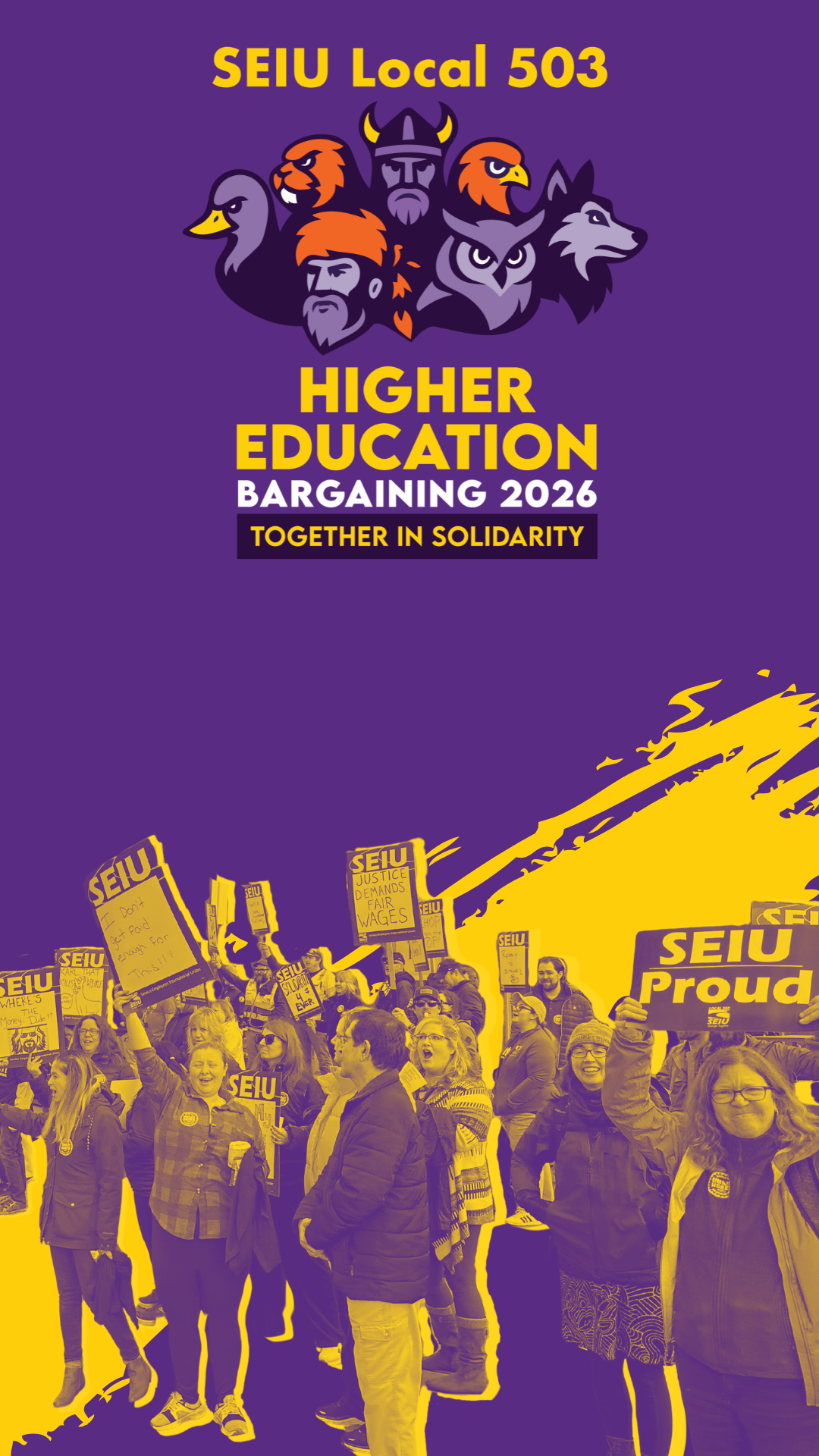
These backgrounds are designed for upcoming 2026 bargaining sessions. Each design includes a desktop (landscape) version and a mobile (vertical) version.
Upcoming bargaining observation
Join the Zoom observation on Thursday, February 12, 2026 at 1:15 PM. It was originally set for 10:00 AM, but around 9:00 AM management changed the time. Anyone joining after 1:20 PM will be removed.
View event details and join link →Download the full pack
Includes 3 designs in desktop + mobile sizes (PNG).
Tip: If you’re not sure which to choose, download the ZIP and pick your favorite.
Choose a background

Campus
Clean illustration style with SEIU Local 503 branding.

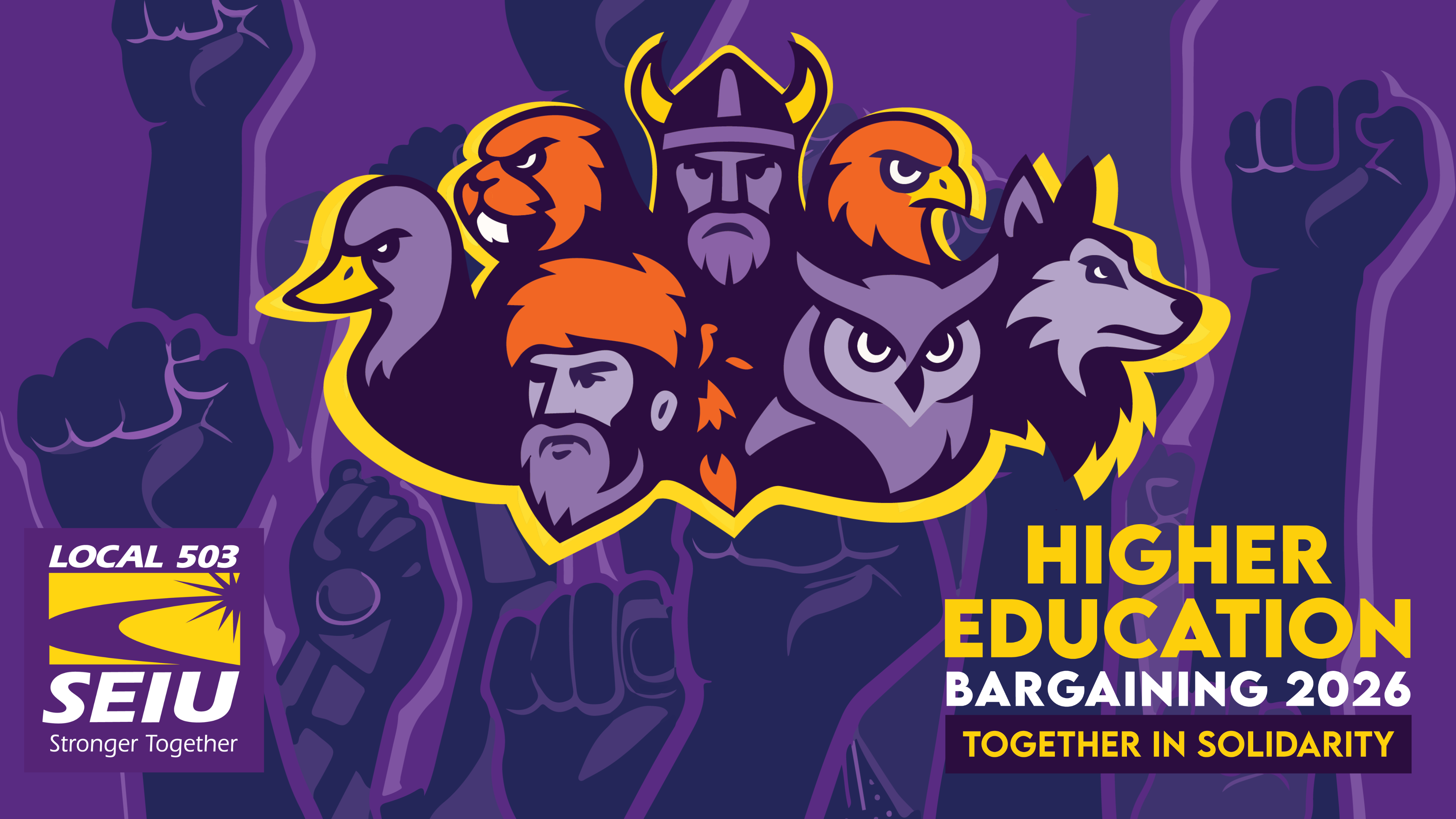
Together in Solidarity
Raised fists + campus mascots for a bold bargaining vibe.

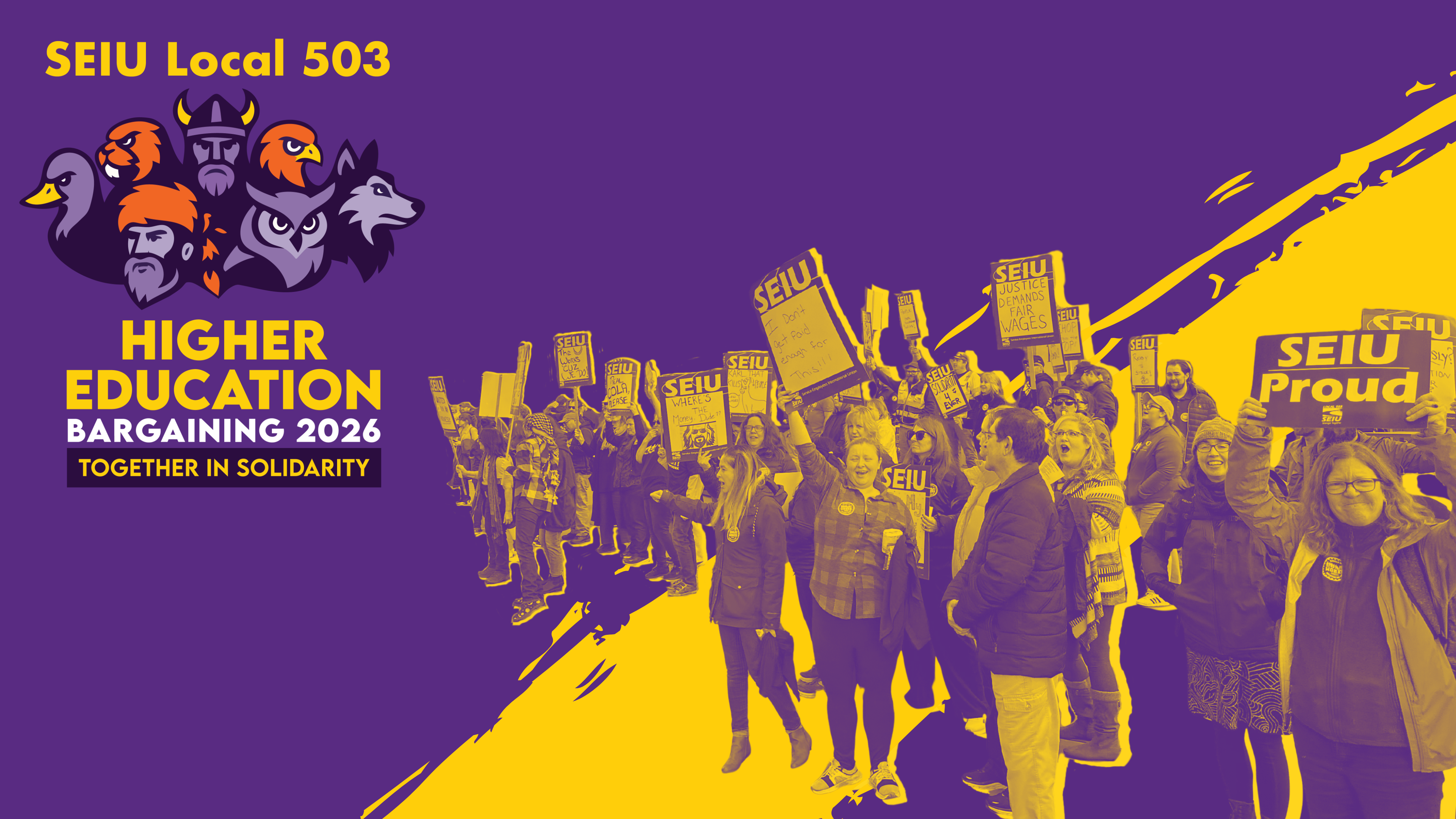
Rally
A real photo background with strong contrast and signage.
Low-bandwidth pack (JPG)
Smaller file sizes for slower connections. Includes desktop (1920×1080) and mobile (1080×1920).
Microsoft Teams pack (JPG)
Optimized for Teams backgrounds (1920×1080). Works in Zoom too if you prefer smaller files.
How to add a background
We recommend adding the background before your bargaining session so you’re not scrambling at the start of the call.
Zoom desktop app (Windows/Mac)
- Download a background above (desktop/landscape is recommended).
- Open Zoom and go to Settings → Backgrounds & Effects.
- Select + (Add) → Add Image, then choose the file you downloaded.
- Select the new background tile to apply it.
Zoom mobile app (iPhone/Android)
- Download a background above (mobile/vertical works best).
- In Zoom, open Settings → Meetings → Background & Effects (wording may vary).
- Tap + to add an image from your phone, then select the file you downloaded.
- Select the new background to apply it.
Microsoft Teams (desktop)
- Download a Teams background above (1920×1080).
- Open a Teams meeting and select More (•••) → Background effects.
- Choose Add new and select the image you downloaded.
- Select the new background to apply it.
Quick tip: If your background looks “glitchy,” try better lighting and a simpler shirt pattern, or turn off “Mirror my video.” Zoom backgrounds work best with a clear contrast between you and your surroundings.
Test your background
- Open your camera preview and check that your face isn’t blending into the background.
- Use front lighting if possible—windows in front of you work best.
- Keep your camera at eye level so the background doesn’t cut across your head.
- If your laptop struggles, try the low-bandwidth pack.
Want the why, too?
Read the short explainer on how a shared Zoom background helps us show unity, protect member privacy, and keep the focus on bargaining.
Read the News PostImages provided by the SEIU 503 Comms Team.